Lab 03 - Create a domain model
Lab Goal
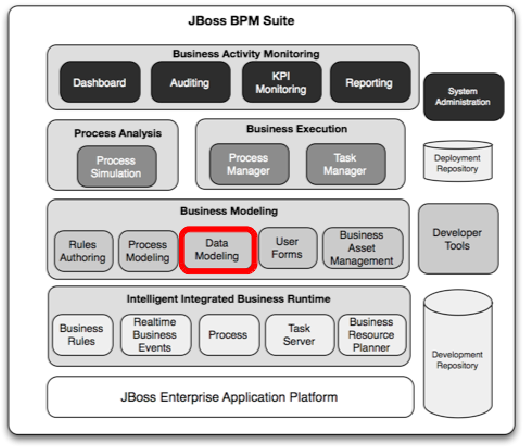
To create a new domain model with the JBoss BPM Suite domain modeler
Create new domain model
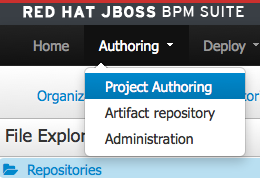
- Head over to the project authoring perspective:
AUTHORING -> PROJECT AUTHORING
Create new domain model
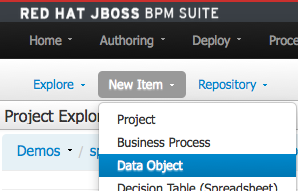
- Open the domain modeler with first object to be created:
Create new domain model
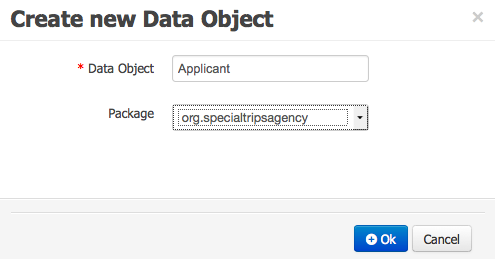
- Create
Applicant in pop-up
- Name:
Applicant
- Package:
org.specialtripsagency
- Click on
OK
Create new domain model
- The new object
Applicant ready for fields to be added:
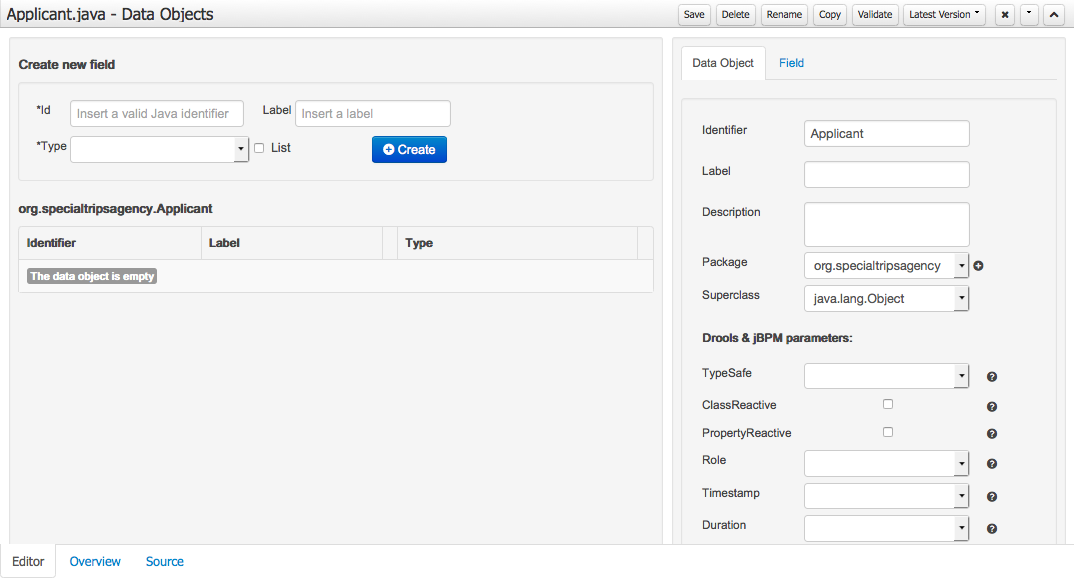
Create new domain model
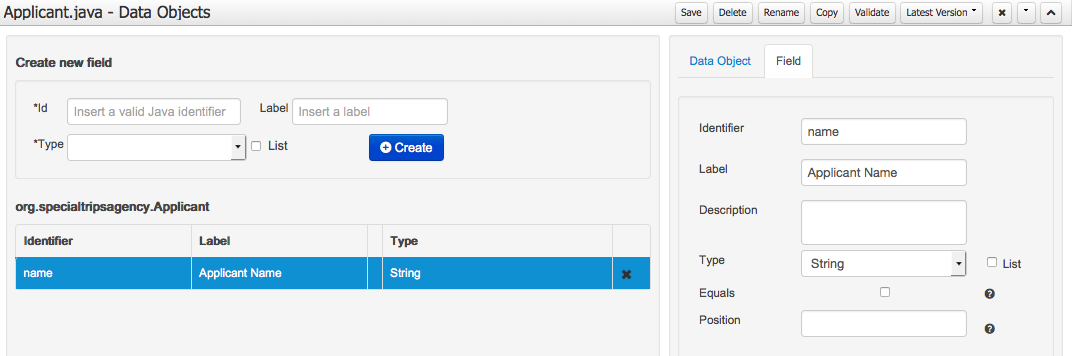
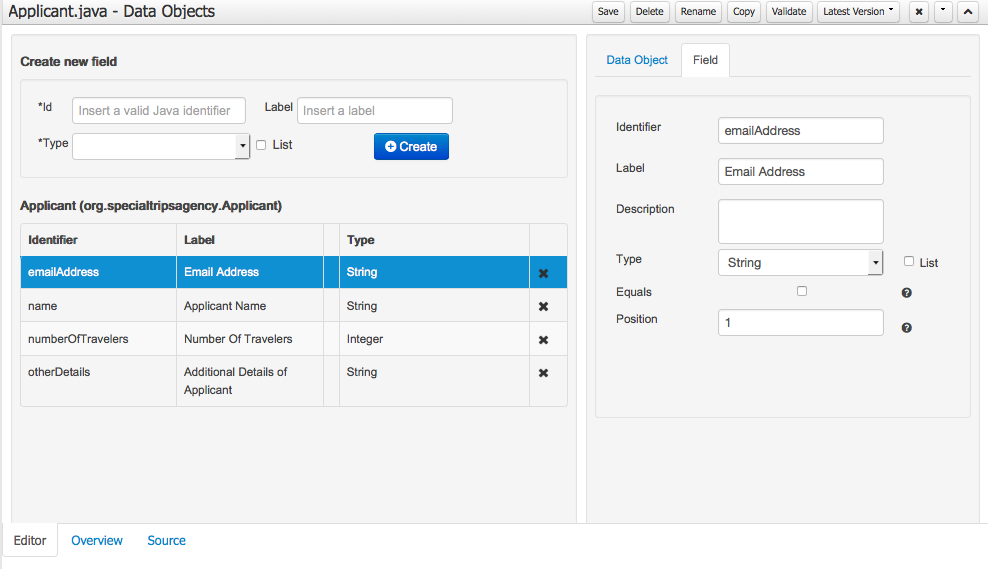
- Add field
Name and click +CREATE when done:
- Id:
name
- Label:
Applicant Name
- Type: select
String
- the field will be added to
Applicant
Create new domain model
- Add all fields as shown, hitting
+CREATE to add each one
- emailAddress, Email Address,
String
- numberOfTravelers, Number of Travelers,
Integer
- otherDetails, Additional Details of Applicant,
String
- use tabs
DATA OJBECT or FIELDS if need to modify
Create new domain model
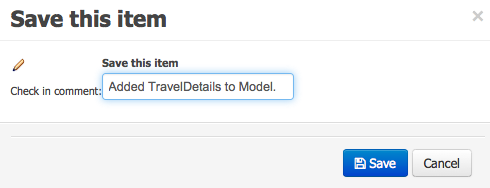
- Finally, we click on
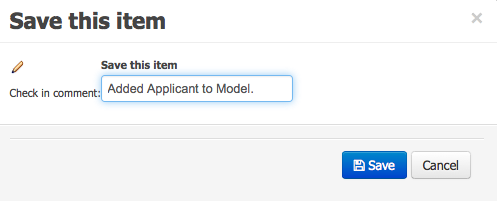
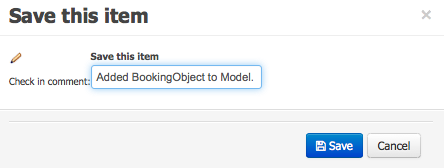
SAVE, add comment, click on SAVE
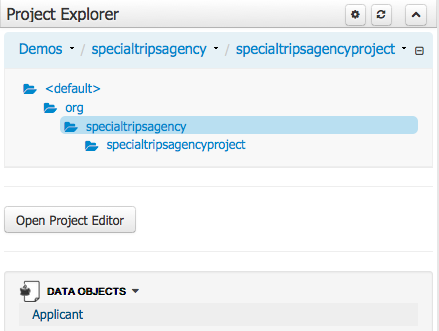
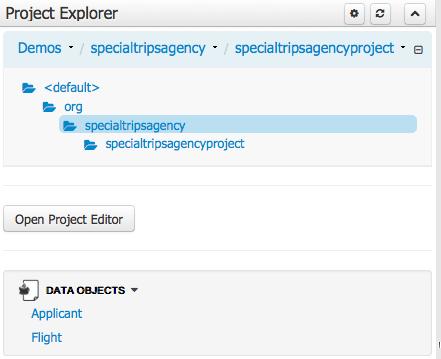
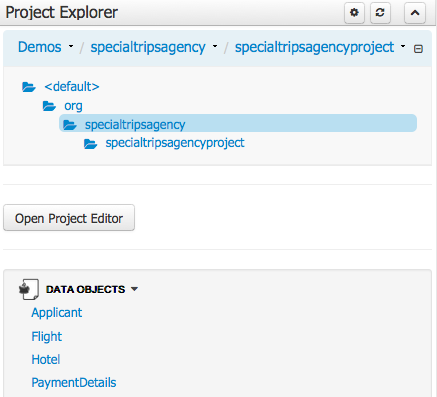
- To view create object, expand
PROJECT EXPLORER -> click on + icon
- Expand to
(DEFAULT)/ORG/SPECIALTRIPSAGENCY
- Expand
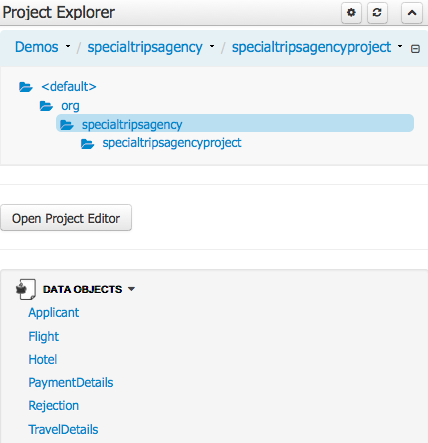
DATA OJBECTS section to view model:
Create new domain model
- Next in our domain model is
Flight add from menu NEW ITEM -> DATA OBJECT and fields as shown:
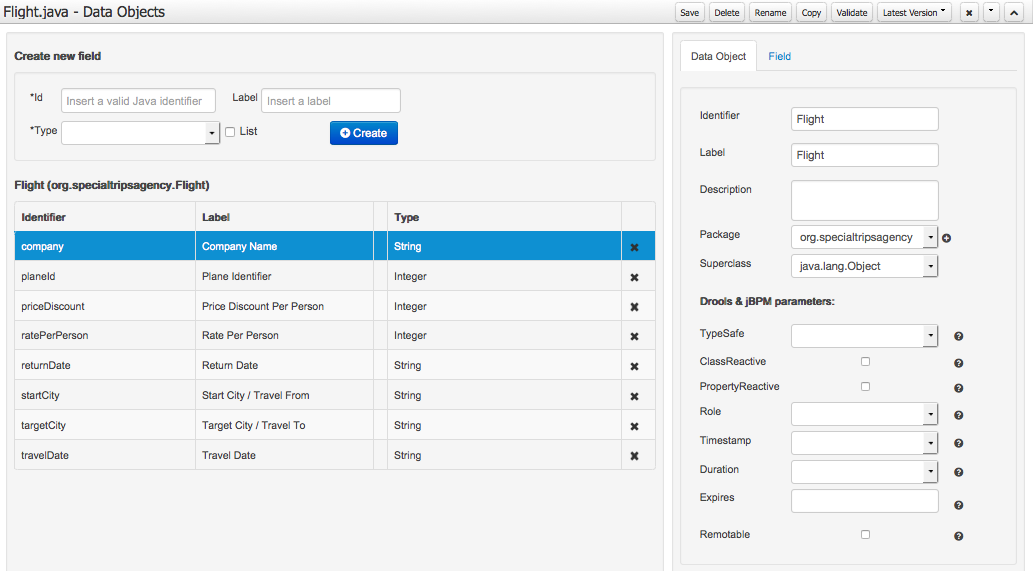
Create new domain model
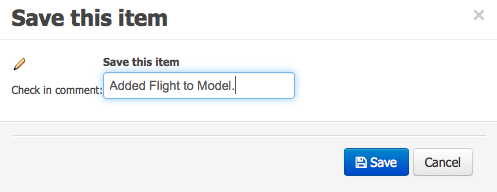
- Finally, we click on
SAVE, add comment, click on SAVE
- To view create object, expand
PROJECT EXPLORER -> click on + icon
- Expand to
(DEFAULT)/ORG/SPECIALTRIPSAGENCY
- Expand
DATA OJBECTS section to view model:
Create new domain model
- Next in our domain model is
Hotel, create as shown:
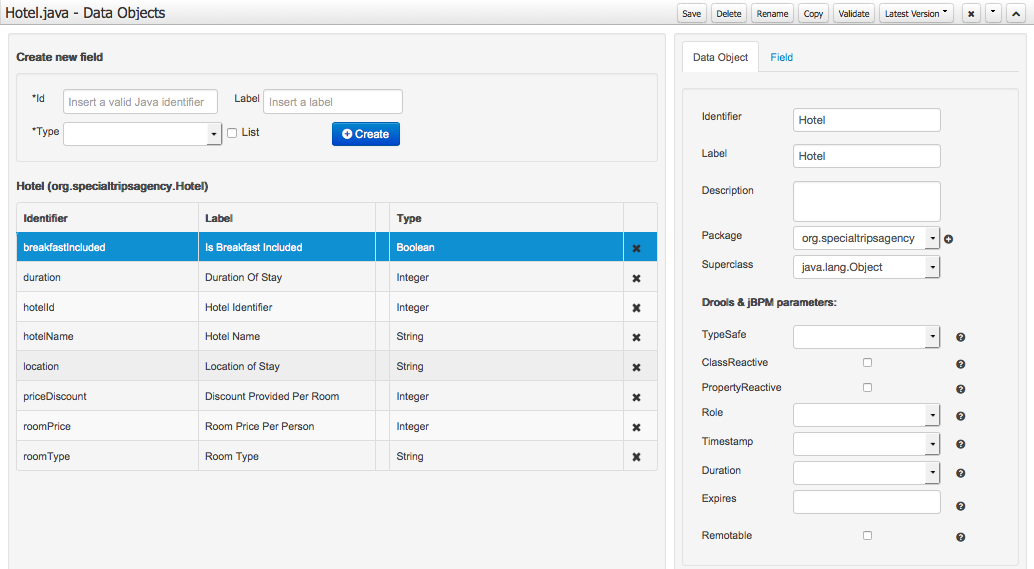
Create new domain model
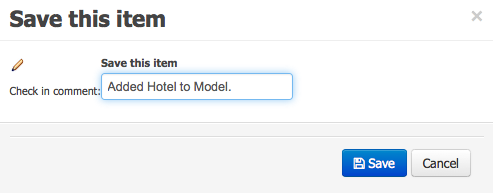
- Finally, we click on
SAVE, add comment, click on SAVE
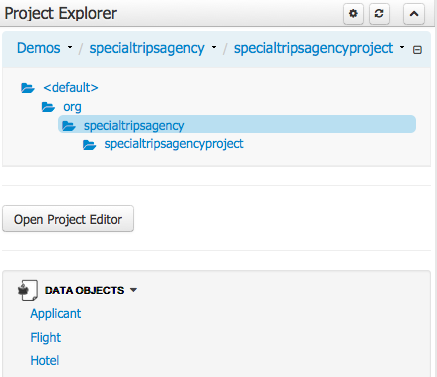
- Expand
DATA OJBECTS section to view model:
Create new domain model
- Next in our domain model is
PaymentDetails, create as shown:
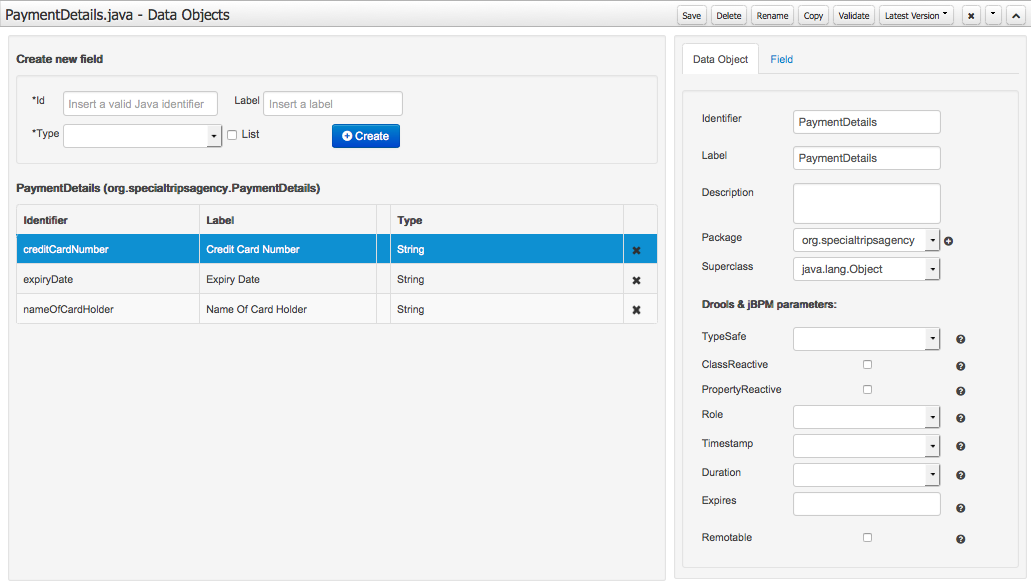
Create new domain model
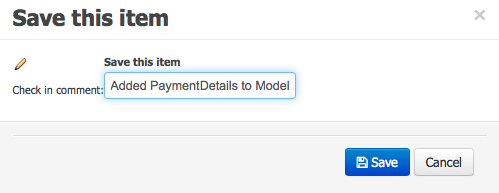
- Finally, we click on
SAVE, add comment, click on SAVE
- Expand
DATA OJBECTS section to view model:
Create new domain model
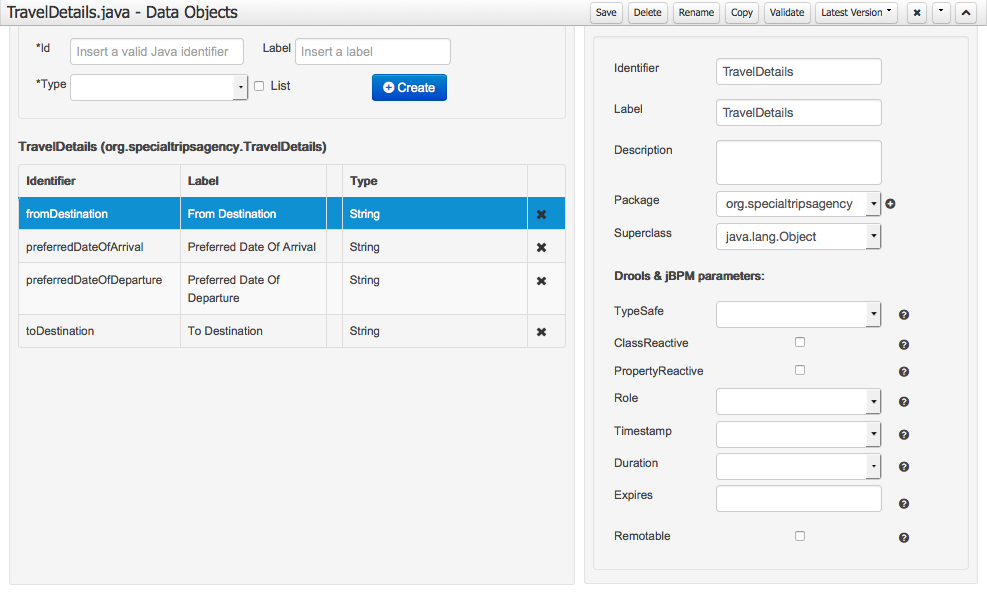
- Next in our domain model is
TravelDetails, create as shown:
Create new domain model
- Finally, we click on
SAVE, add comment, click on SAVE
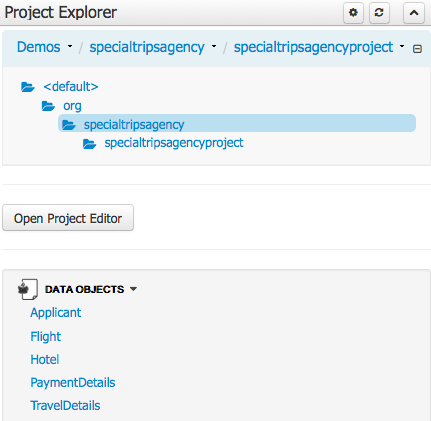
- Expand
DATA OJBECTS section to view model:
Create new domain model
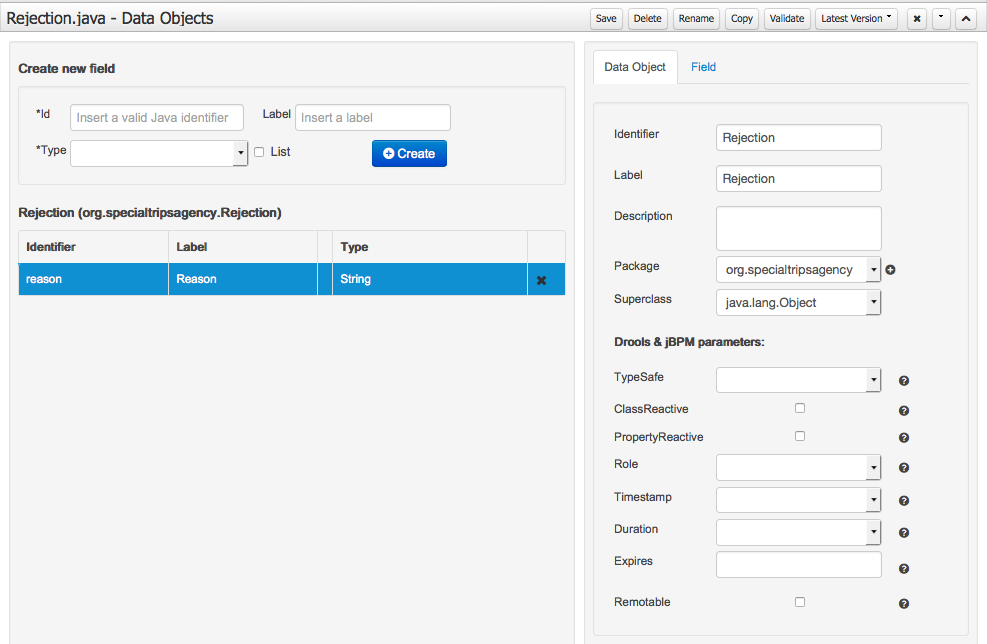
- Next in our domain model is
Rejection, create as shown:
Create new domain model
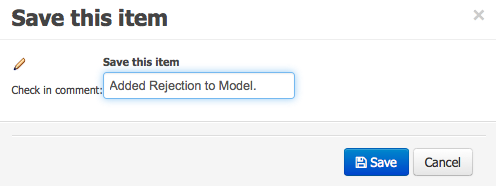
- Finally, we click on
SAVE, add comment, click on SAVE
- Expand
DATA OJBECTS section to view model:
Create new domain model
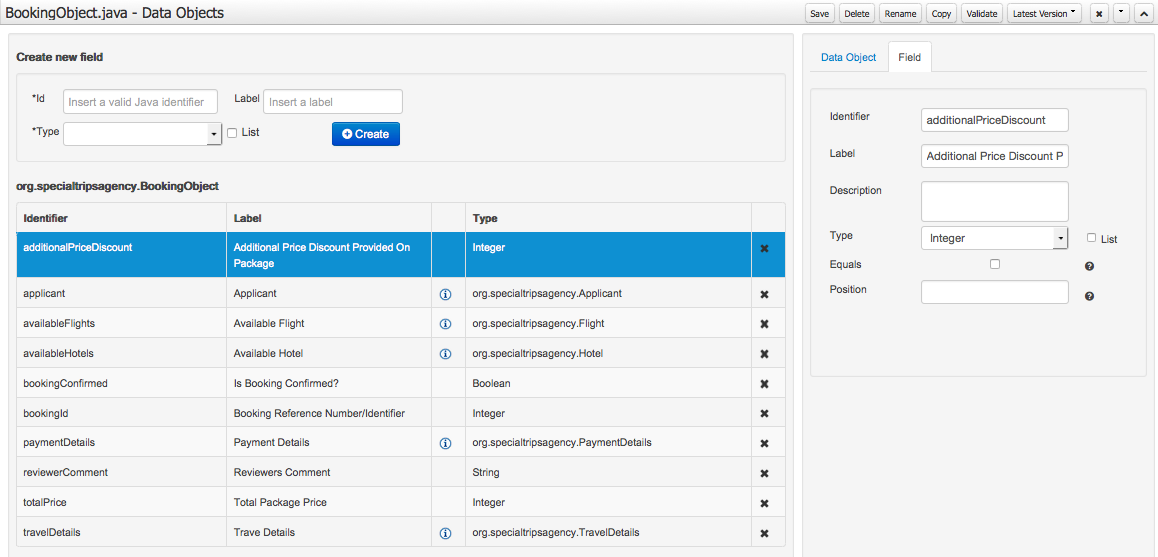
- Our last item is
BookingObject, create as shown:
Create new domain model
- Finally, we click on
SAVE, add comment, click on SAVE
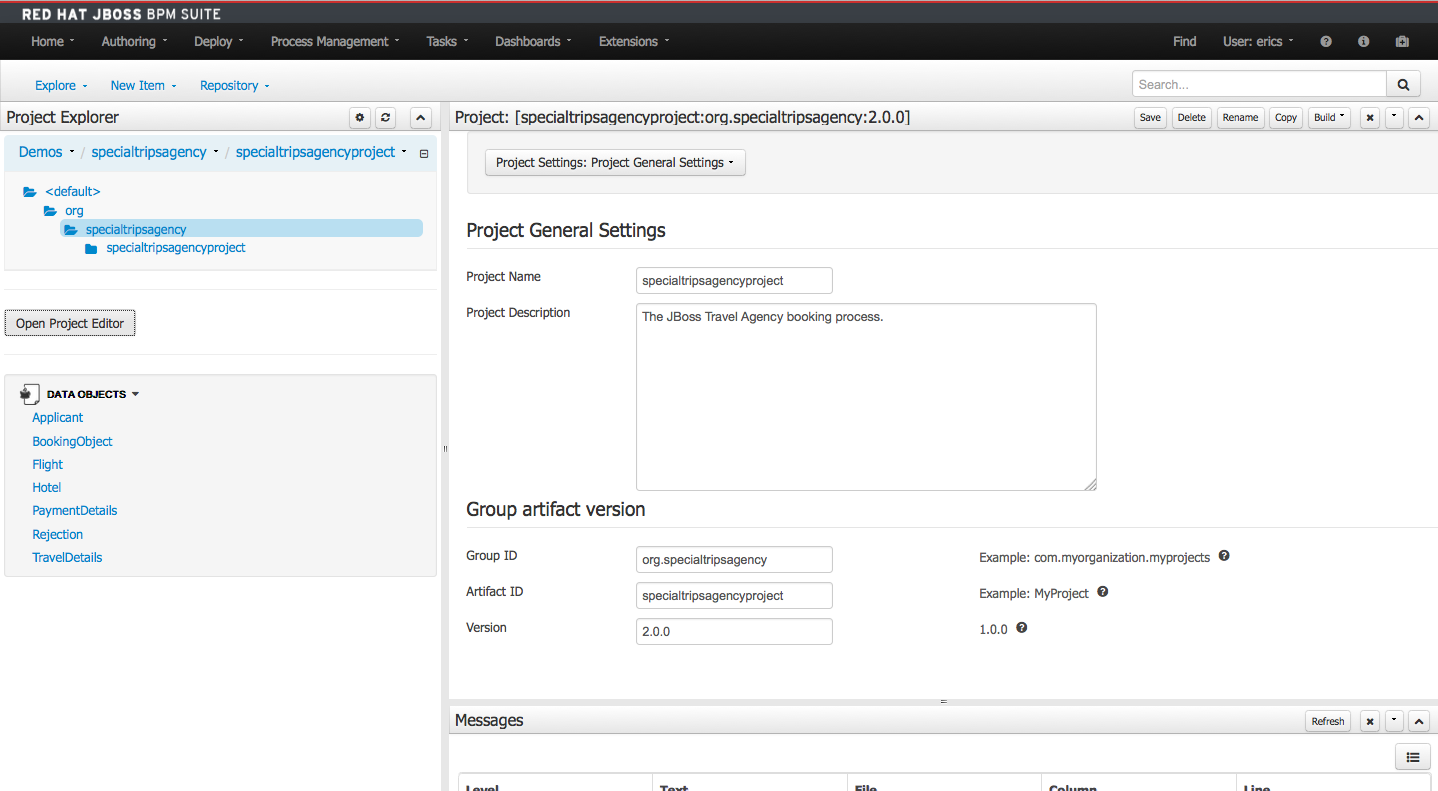
- Expand
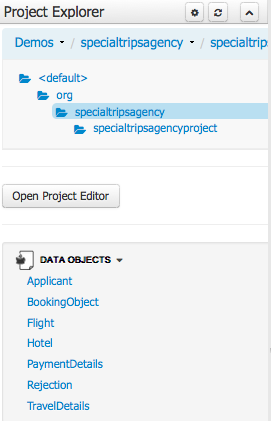
DATA OJBECTS section to view model:
Building the Travel Agency
(next up, creating guided rules...)
- JBoss BRMS & BPM Suite Articles
- JBoss BPM Suite Demos
- JBoss bpmPaaS Demos